Split Payment Button
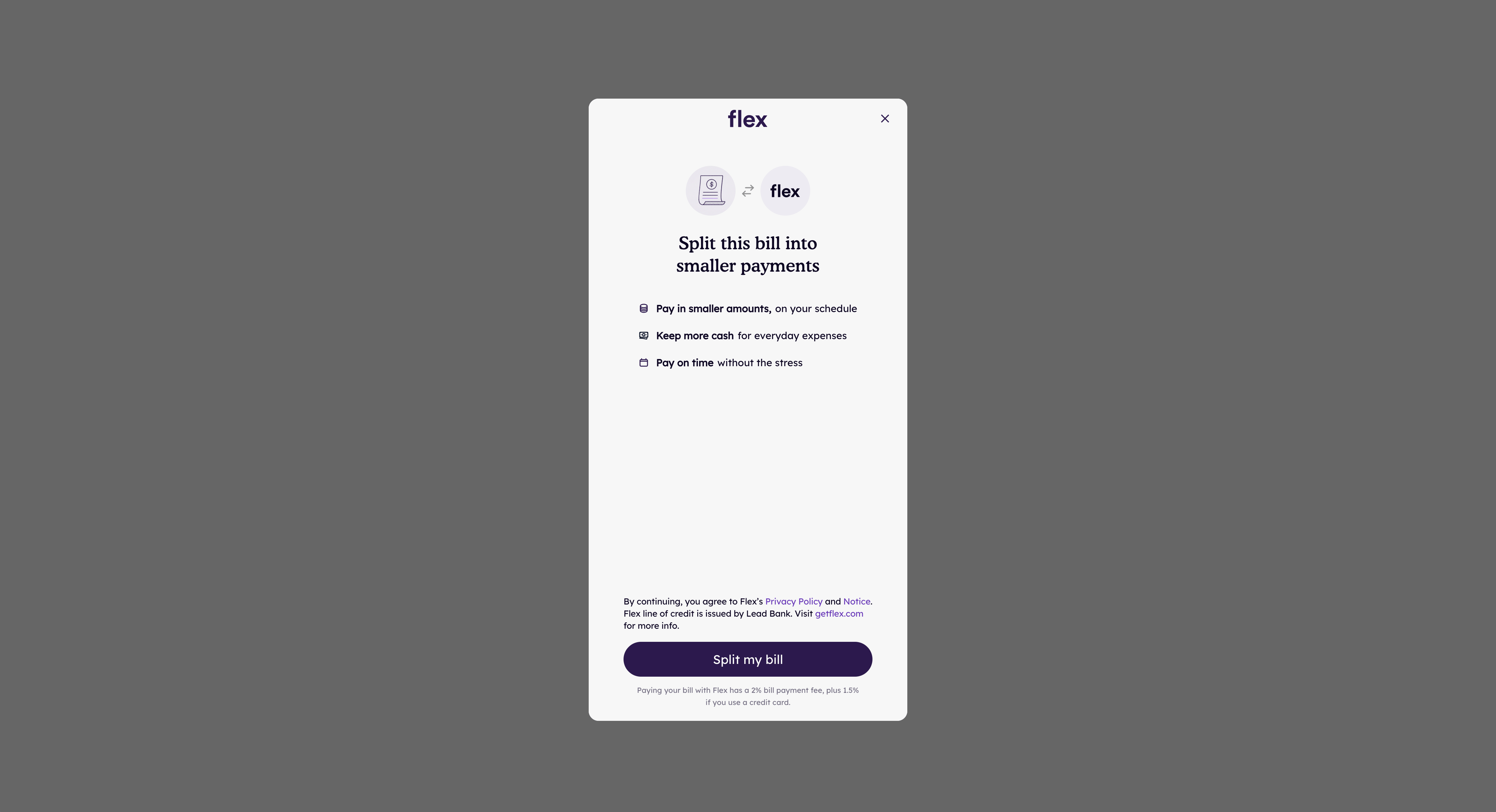
Display a pre-built button that automatically opens the Flex Checkout modal when clicked.
Initialization
Display the Split Payment Button by calling flex.splitPaymentButton(options) with configuration options.
flex.ready(() => {
  flex.splitPaymentButton()
})
Options
| Parameter | Type | Description |
|---|---|---|
id | String | The dom id of the element where the Split Payment Button should be inserted. Defaults to flex-split-payment-button-id. |
styles | Object | A limited set of attributes that can style the Split Payment Button. Presently { height: string } is available. Examples would include { height: '40px' } and { height: '3em' }. |
visible | Boolean | Determines whether the Split Payment Button is hidden or visible when it loads. |
When the Split Payment Button is displayed with flex.splitPaymentButton(options), clicking that button will automatically open the Flex Checkout modal. Be sure to include a dom element that matches the Split Payment Button id.
<div id="flex-split-payment-button-id"></div>
<script>
  flex.ready(() => {
    flex.splitPaymentButton({ id: 'flex-split-payment-button-id' })
  })
</script>
Cleanup on Destroy
If the container element for a Split Payment Button is removed from the DOM — for example, when a user switches between tabs and the tab content is destroyed — you must call flex.splitPaymentButton.destroy() before the container is removed. Failing to do so will cause errors when the container is recreated and flex.splitPaymentButton is called again with the same id.
Always destroy a Split Payment Button before its container is removed from the DOM. If the container is destroyed and recreated without calling destroy(), the SDK will still hold a reference to the old (detached) element.
<div id="tab-a">
  <div id="flex-split-payment-button-id"></div>
</div>

<script>
  flex.ready(() => {
    flex.splitPaymentButton({ id: 'flex-split-payment-button-id' })
  })

  function switchTab() {
    // ✅ Destroy the button before removing its container from the DOM
    flex.splitPaymentButton.destroy('flex-split-payment-button-id')

    document.getElementById('tab-a').remove()

    // Later, when tab-a is re-added to the DOM:
    flex.splitPaymentButton({ id: 'flex-split-payment-button-id' })
  }
</script>
In React, return the destroy call from your useEffect cleanup function so it runs automatically when the component unmounts.
useEffect(() => {
  flex.ready(() => {
    flex.splitPaymentButton({ id: 'flex-split-payment-button-id' })
  })

  return () => {
    flex.splitPaymentButton.destroy('flex-split-payment-button-id')
  }
}, [])
Dynamic Loading
Any component, like a Split Payment Button, can be loaded dynamically. In this case, flex.splitPaymentButton does not need to be wrapped in flex.ready. However, flex.ready needs to have already been called.
After Flex() is called, flex.ready will typically be called less than a second later.
<div id="flex-split-payment-button-id-1"></div>
<script>
  // flex.ready(() => {}) does not need to be formally called by the developer
  // It is called internally in the Flex sdk

  function loadButtonDynamically() {
    flex.splitPaymentButton({ id: 'flex-split-payment-button-id-1' })
  }

  // flex.ready will not have been called yet
  ❌ loadButtonDynamically()

  document.getElementById('some-element').addEventListener('click', () => {
    // flex.ready will probably have been called already
    ✅ loadButtonDynamically()
  })
</script>
Multiple Buttons
If you wish to load more than one Split Payment Button, simply use a different id for each button.
<div id="flex-split-payment-button-id-1"></div>
<div id="flex-split-payment-button-id-2"></div>
<script>
  flex.ready(() => {
    flex.splitPaymentButton({ id: 'flex-split-payment-button-id-1' })
    flex.splitPaymentButton({ id: 'flex-split-payment-button-id-2' })
  })
</script>
flex.splitPaymentButton() can be called without any configuration option, so long as there is a div on the page with the default flex-split-payment-button-id id.
<div id="flex-split-payment-button-id"></div>
<script>
  flex.ready(() => {
    flex.splitPaymentButton()
  })
</script>
*If you wish to use more than one button, you must use a distinct id for each button.
Methods
Exported methods for controlling and interacting with the Split Payment Button.
splitPaymentButton.show()
Show a Split Payment Button by passing the id of the Split Payment Button you want to show.
flex.splitPaymentButton.show('flex-split-payment-button-id')
splitPaymentButton.hide()
Hide a Split Payment Button by passing the id of the Split Payment Button you want to hide.
flex.splitPaymentButton.hide('flex-split-payment-button-id')
splitPaymentButton.destroy()
Destroy a Split Payment Button by passing the id of the Split Payment Button you want to destroy. This is useful if the parent container has been destroyed and recreated.
flex.splitPaymentButton.destroy('flex-split-payment-button-id')