Checkout
The Embedded Checkout allows users to onboard with autopay or make a one-time payment.
Initialization
Configure the Embedded Checkout by calling sdk.checkout(config) with a CheckoutConfig object on your FlexSDK instance.
import 'package:flex_checkout_flutter/flex_checkout_flutter.dart';

sdk.checkout(CheckoutConfig(
  interstitial: true,
  onOpen: () {},
  onClose: () {},
  onError: (error) {},
  onEvent: (event) {},
));
When opened, the Embedded Checkout guides the user through onboarding and payment.
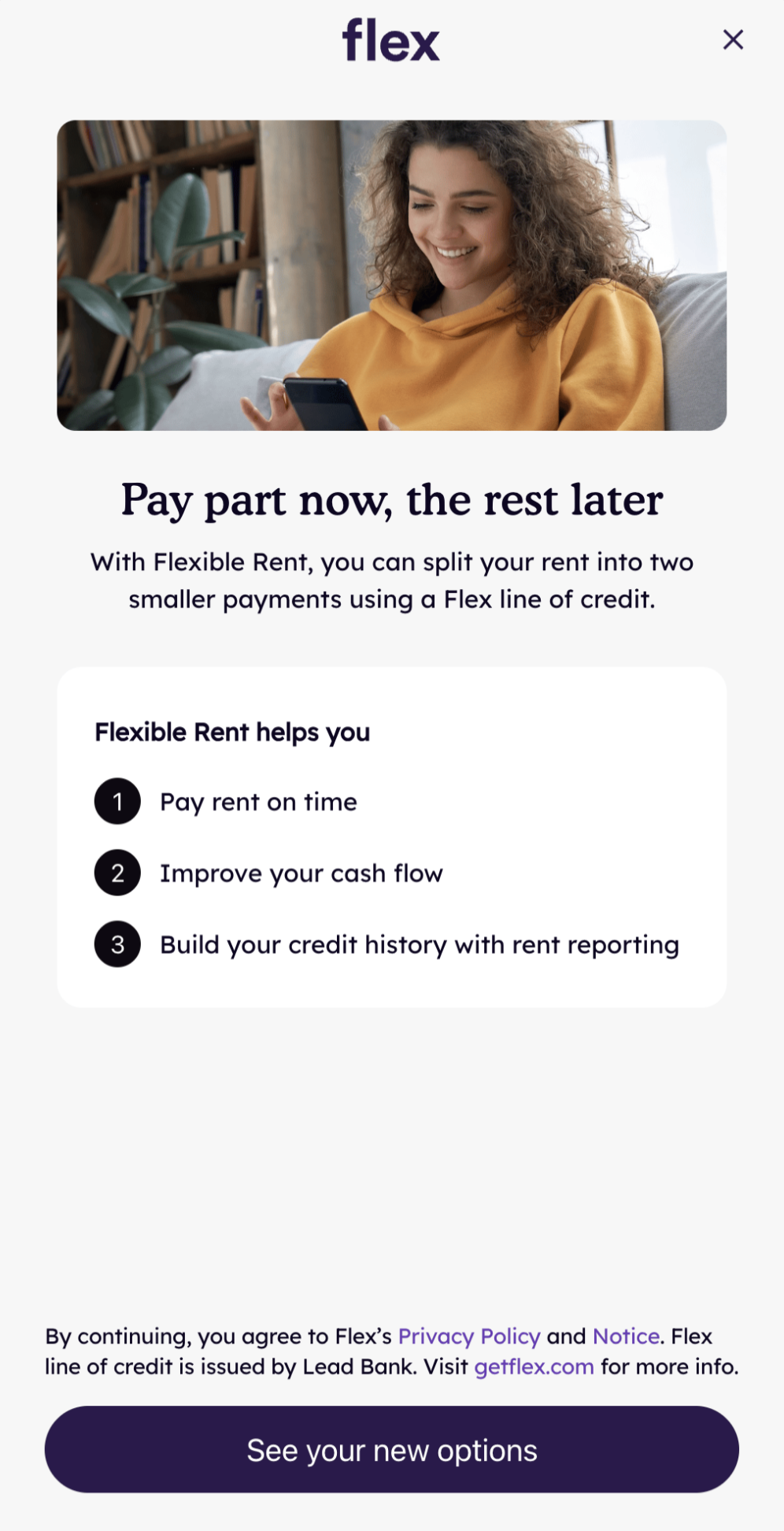
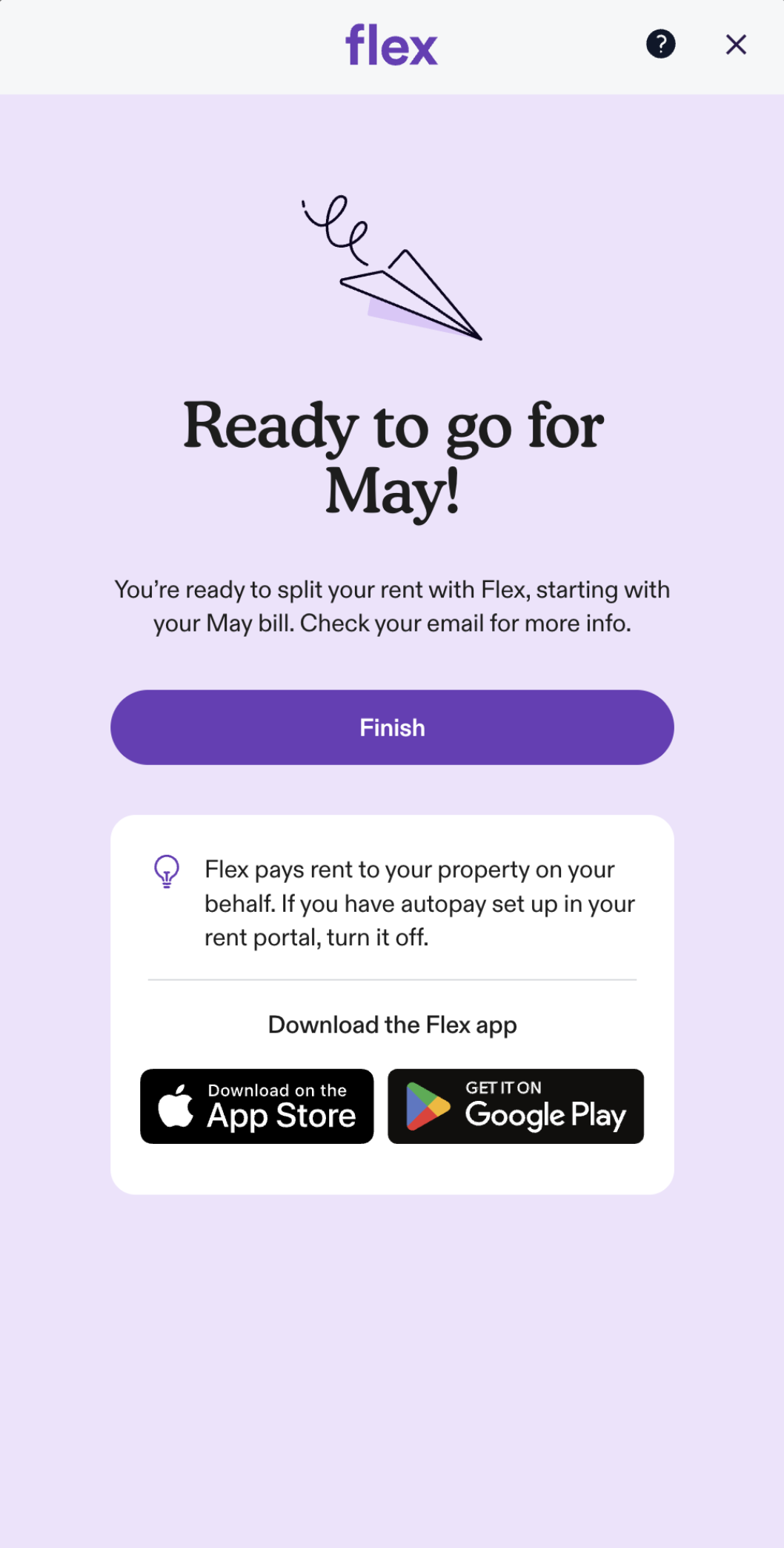
The interstitial introduces the Flex offer before the user proceeds to the full flow, ending on a confirmation screen.
Options
Options for configuring and listening to events from the Embedded Checkout.
| Parameter | Type | Description |
|---|---|---|
interstitial | bool | Whether to show or hide the interstitial screen. Defaults to true. |
onClose | void Function()? | Called when the Embedded Checkout is closed. |
onError | void Function(String)? | Called when an error occurs. Receives a String with the error message. |
onEvent | void Function(ModalEvent)? | Events in the Flex app will trigger onEvent to be called. Receives a ModalEvent with a type field indicating which event has been triggered. |
onOpen | void Function()? | Called when the Embedded Checkout is opened. |
Event Types
The onEvent callback receives a ModalEvent object with a type field and a data field.
| Event Type | Description |
|---|---|
ModalEventType.onboardingCompleted | User has completed onboarding. Check event.data.autopayEnabled for autopay status. |
ModalEventType.paymentCompleted | User has completed payment. onboardingCompleted will have been sent first. |
ModalEventType.autopayStatusUpdated | User has updated their autopay status. Check event.data.autopayEnabled for new status. |
import 'package:flex_checkout_flutter/flex_checkout_flutter.dart';

sdk.checkout(CheckoutConfig(
  onEvent: (event) {
    switch (event.type) {
      case ModalEventType.onboardingCompleted:
        // User has completed onboarding.
        // event.data.autopayEnabled indicates if autopay was enabled.
        break;
      case ModalEventType.paymentCompleted:
        // User has completed payment.
        break;
      case ModalEventType.autopayStatusUpdated:
        // User has updated their autopay status.
        // event.data.autopayEnabled indicates the new status.
        break;
    }
  },
));
Error Handling
If the checkout fails to load — network unavailable, app.getflex.com unreachable, or the JS handshake doesn't complete within 15 seconds — the SDK displays a recoverable error screen inside the sheet so the partner does not need to dismiss it.
- First failure: "Something went wrong — Please try again" with a Try Again button that retries the load.
- Retry also fails: terminal "We're experiencing technical issues" screen (no retry button).
- A Help link in both states opens help.getflex.com in the user's browser.
- The user can dismiss the sheet at any time via the close
X.
Your onError callback is also invoked on every failure with a descriptive message:
sdk.checkout(CheckoutConfig(
  onError: (error) {
    // error is a String like:
    //   "Checkout failed to load: The Internet connection appears to be offline."
    //   "Checkout failed to load: Checkout did not load in time"
    //   "Checkout failed to load: Failed to load token: ..."
    debugPrint(error);
  },
));
You don't need to take any UI action on onError — the SDK already shows the user-facing error UI. Use the callback for logging, analytics, or your own diagnostics.
Methods
closeCheckout()
Programmatically closes the Embedded Checkout.
sdk.closeCheckout();