Installation
Follow the steps below to add the Flex Checkout-JS SDK to your page.
Use of this SDK is governed by our — review before integrating.
flex.js Script Inclusion
Add the flex.js script to the head of your page, which will export a global Flex function.
The sandbox version of flex.js used for developing and testing should include .int.
<head>
  <script src="https://checkout.int.getflex.com/v2/rent/flex.js"></script>
</head>
The production version of flex.js should not include .int.
<head>
  <script src="https://checkout.getflex.com/v2/rent/flex.js"></script>
</head>
Initializing flex.js
Instantiate the Flex Checkout-JS client by calling the global Flex function with the following parameters.
This function exports an object which contains a library of options to control the Flex Checkout experience.
const flex = Flex({ clientId: '1234abc-5678-9def-0hij-9876lmnopqrs' })
The Flex() function is a singleton and should only be initialized once per page.
Calling the Flex() function over and over is an anti-pattern that will destroy the previous Flex components and their state, so reuse the returned flex object instead.
FlexConfig Fields
Configuration object for the Flex Checkout-JS client.
| Parameter | Type | Description |
|---|---|---|
clientId | String | Required The client id provided by Flex which identifies your Flex client. |
type | payment or rent | The rent or payment product a user onboards into. Defaults to rent. |
options | Object | Settings to customize checkout behavior. |
developer | Object | Developer tool configuration options. |
Options
Fields for the optional options object. Only include if you want to update the default Flex Checkout experience.
const flex = Flex({
  clientId: '1234abc-5678-9def-0hij-9876lmnopqrs',
  type: 'rent',
  options: {
    prefill: false,
  },
})
| Parameter | Type | Description |
|---|---|---|
deferFontDownload | Boolean | When true, Flex delays downloading its web fonts until a Flex component is rendered. This will reduce download bandwidth at SDK initialization, but may result in FOUT. Not recommended. Defaults to false. |
deferInterstitialWarmUp | Boolean | When true, Flex will not pre-load the onboarding experience on the Interstitial Screen. Defaults to false. |
prefill | Boolean | When true, the Checkout-JS sdk leverages your provided token to enable onboarding prefills and property connection. When false, the SDK proceeds without a token and the user follows Flex's standard onboarding process. Defaults to true. |
Developer Tools
The optional developer field enables a console for testing the SDK with your own client ids and tokens, including running the rent and payment flows side by side under different credentials.
const flex = Flex({
  clientId: '1234abc-5678-9def-0hij-9876lmnopqrs',
  type: 'rent',
  developer: {
    console: true,
  },
})
Add a div with an id of flex-console-id to your page where you want to see the console.
<div id="flex-console-id"></div>
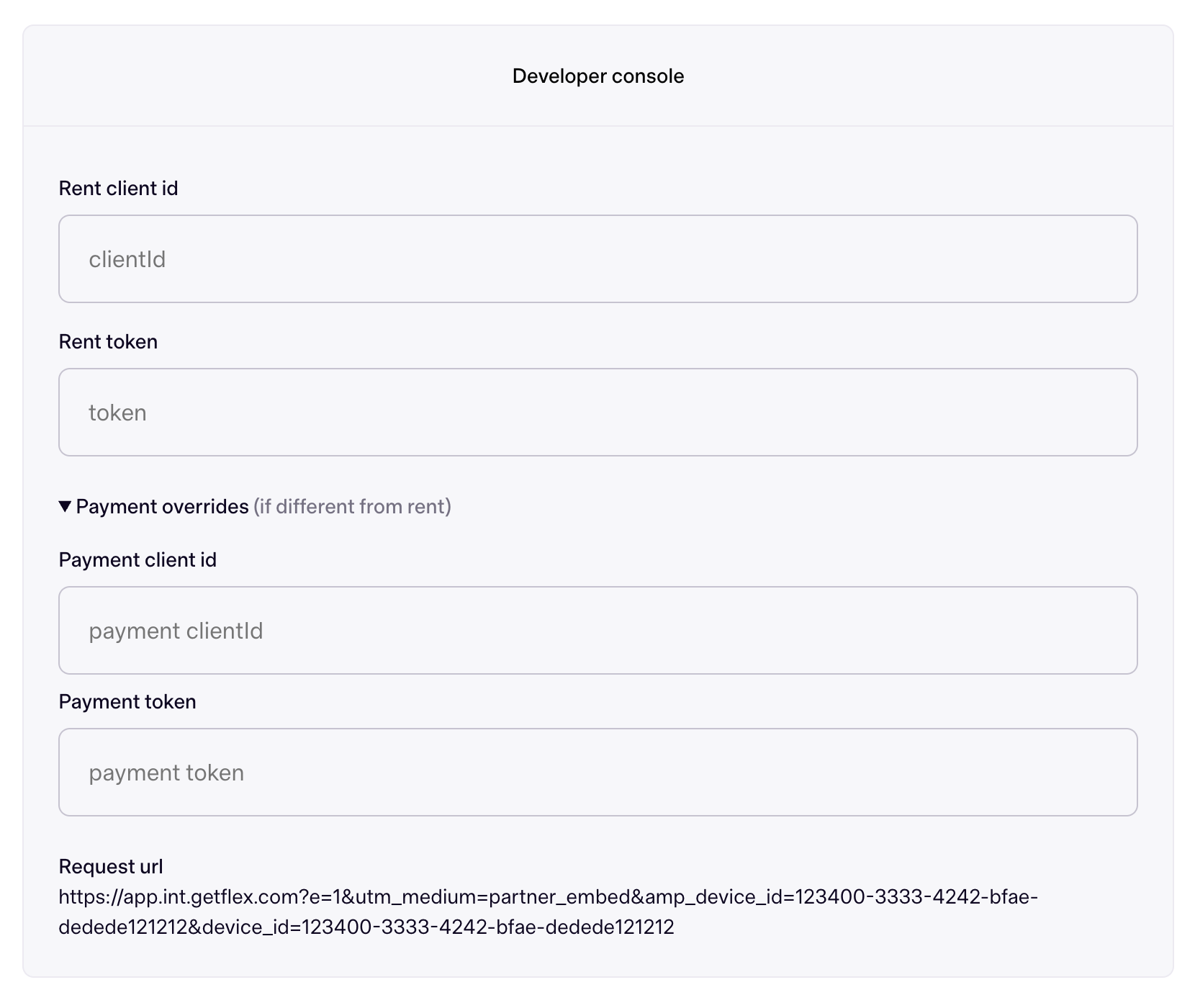
The console has a rent client id and rent token, a collapsible "Payment overrides" section with a separate payment client id and payment token (for running the payment flow under different credentials), and the resolved request url.
Developer Fields
Fields for the developer object.
| Parameter | Type | Description |
|---|---|---|
console | Boolean | Displays the developer console for entering client ids and tokens, including separate rent and payment values. |
logs | Boolean | Displays informative logs for debugging Flex Checkout-JS in your browser's DevTools. |
Override the type field on a single call by passing an optional productType argument ('rent' or 'payment') to most methods. This is useful when you run rent and payment together in the same app. For example:
flex.token.load(loader, 'payment')flex.analytics.logImpression(data, 'payment')
See the Multiple Products (Rent + Payment) section below.
Ready
A callback should be passed to flex.ready() that is called when Flex Checkout-JS finishes loading and is ready to be used.
flex.ready(() => {
  console.log('Flex Checkout-JS is ready!')
})
| Parameter | Type | Description |
|---|---|---|
callback | Function | Required Called when Flex Checkout-JS is ready. |
You can call flex.ready() more than once. Each callback runs when Flex finishes loading, or immediately if Flex is already ready. This is handy in a single-page app where a user moves between pages: call flex.ready() on each page to set up its components without tracking whether Flex has already loaded.
Token
Loads the token necessary for connecting a user to the Flex Embedded Checkout by asynchronously retrieving and returning it.
token.load(async function() {})
Load a token with an asynchronous callback function.
flex.ready(() => {
  flex.token.load(async () => {
    const { token } = await (await fetch('https://example-api.com/token')).json()
    return token
  })
})
flex.token.load must be called within the flex.ready callback.
As soon as the Flex Checkout modal opens, it will immediately look for an async method that gets a token. That is why this method must be already called before the user has a chance to open the Flex Checkout modal.
For example flex.splitRentButton will load a button for the user to click, which launches the checkout modal. But before this button loads, the flex.token method must be called.
flex.ready(() => {
  // ✅ flex.token.load() is called first.
  flex.token.load(async () => {
    const { token } = await (await fetch('https://example-api.com/token')).json()
    return token
  })

  flex.checkout({
    onReady() {},
  })
  // ✅ flex.splitRentButton() is called later.
  flex.splitRentButton()
})
Pass an async function to flex.token.load inside flex.ready. Fetching the token yourself and passing the resolved string breaks loading in the checkout modal.
// ❌ Don't fetch the token and pass the resolved string
flex.ready(async () => {
  const { token } = await (await fetch('https://example-api.com/token')).json()
  flex.token.load(token)
})

// ✅ Pass an async function; Flex calls it when it needs the token
flex.ready(() => {
  flex.token.load(async () => {
    const { token } = await (await fetch('https://example-api.com/token')).json()
    return token
  })

  flex.splitRentButton()
})
Analytics
Provides a framework for passing impression data through to the Checkout-JS sdk. This allows us to better understand how and where residents are engaging with Flex.
analytics.logImpression()
Pass impression data to the Checkout-JS sdk.
flex.analytics.logImpression({
  residentId: 'xyz',
  propertyId: 'prop-12345',
  placement: 'homepage',
  element: 'split_rent_button',
})
Requested fields for impression data.
| Parameter | Type | Description |
|---|---|---|
residentId | String | id associated with the resident. |
propertyId | String | id associated with the property. |
placement | 'homepage''payments''checkout' | Where the user interaction takes place in your portal. |
element | 'split_rent_button''split_payment_button''learn_more''awareness_banner' | Element displayed for your interaction. |
Scoping an impression to rent or payment
If you run the rent and payment flows on the same page, pass 'rent' or 'payment' as an optional second argument so the impression is attributed to that flow's client. Omit it to use the default flow.
flex.analytics.logImpression(
  {
    residentId: 'xyz',
    propertyId: 'prop-12345',
    placement: 'homepage',
    element: 'split_payment_button',
  },
  'payment',
)
Multiple Products (Rent + Payment)
A single Flex instance can run the rent flow and the bill payment flow at the same time. This lets you show a "Split Rent" option and a "Split Payment" option on the same page.
Pass your clientId as a string. It is used for both the rent and payment flows. Each flow typically needs its own token, so load them separately: token.load accepts an optional second argument of 'rent' or 'payment' to scope that call to a single flow.
const flex = Flex({ clientId: '1234abc-5678-9def-0hij-9876lmnopqrs' })

flex.ready(() => {
  flex.token.load(async () => {
    const { token } = await (await fetch('https://example-api.com/rent-token')).json()
    return token
  }, 'rent')

  flex.token.load(async () => {
    const { token } = await (await fetch('https://example-api.com/payment-token')).json()
    return token
  }, 'payment')

  flex.splitRentButton()
  flex.splitPaymentButton()
})
Each flow resets independently. Switching from one flow to the other mid-session (for example, opening the payment flow while the rent modal is already open) reloads the modal using that flow's own client id and token.
Using a different client id for each product
If Flex has issued you a separate client id for rent and for payment, pass clientId as an object with rent and/or payment keys instead of a single string. Either key can be omitted, in which case that flow falls back to your default client id.
const flex = Flex({
  clientId: {
    rent: '1234abc-5678-9def-0hij-9876lmnopqrs',
    payment: 'xyz9876-5432-1abc-defg-0987hijklmno',
  },
})
Set each flow's token the same way shown above, scoped with 'rent' or 'payment'.